Bubble plugin documentation
Your documents, inside Bubble.
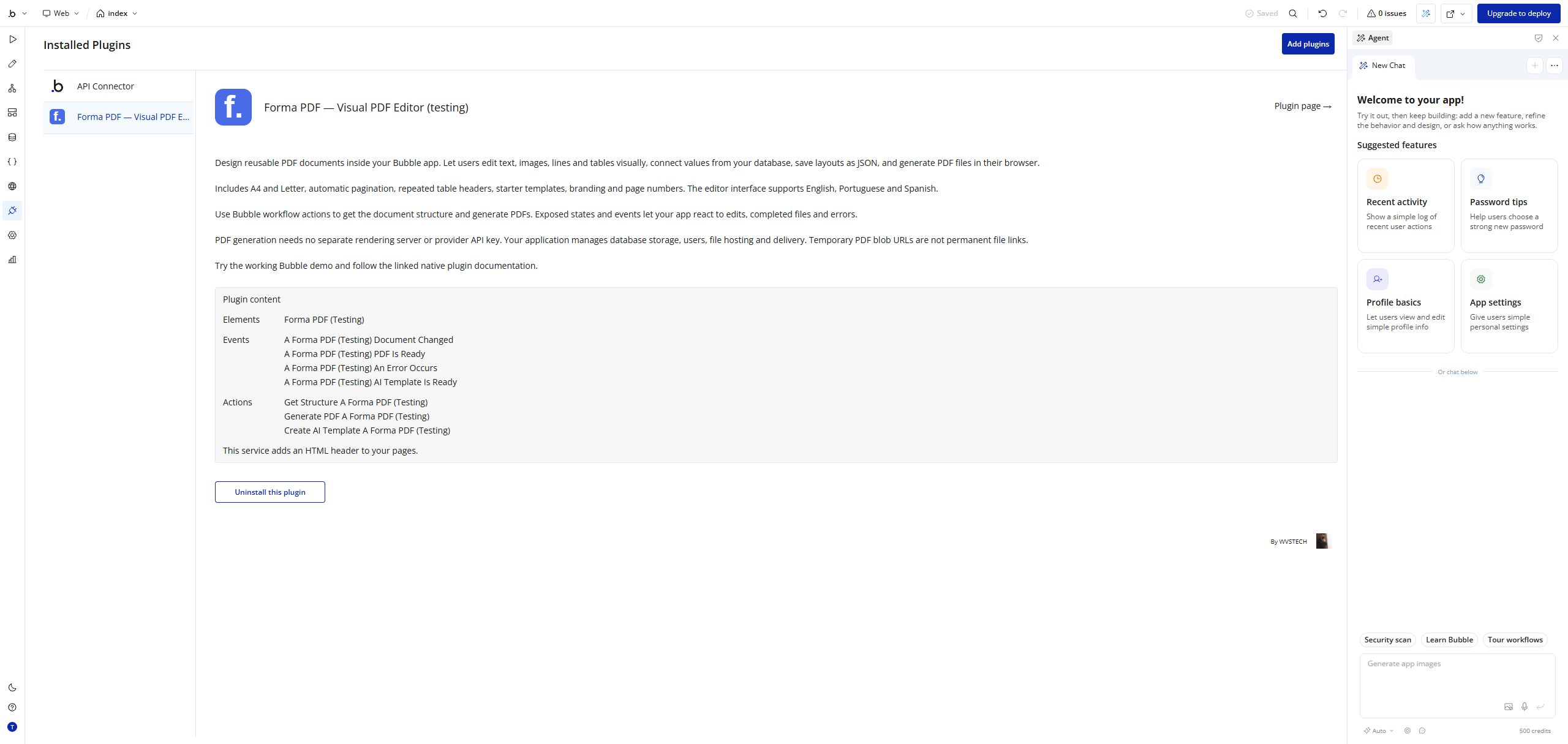
Forma PDF provides a visual document editor and PDF generation in the browser. This guide is for the native Bubble plugin. Installation and licensing are handled within Bubble. The listing must be approved by Bubble before it becomes available for public purchase.
1. Install and add the element
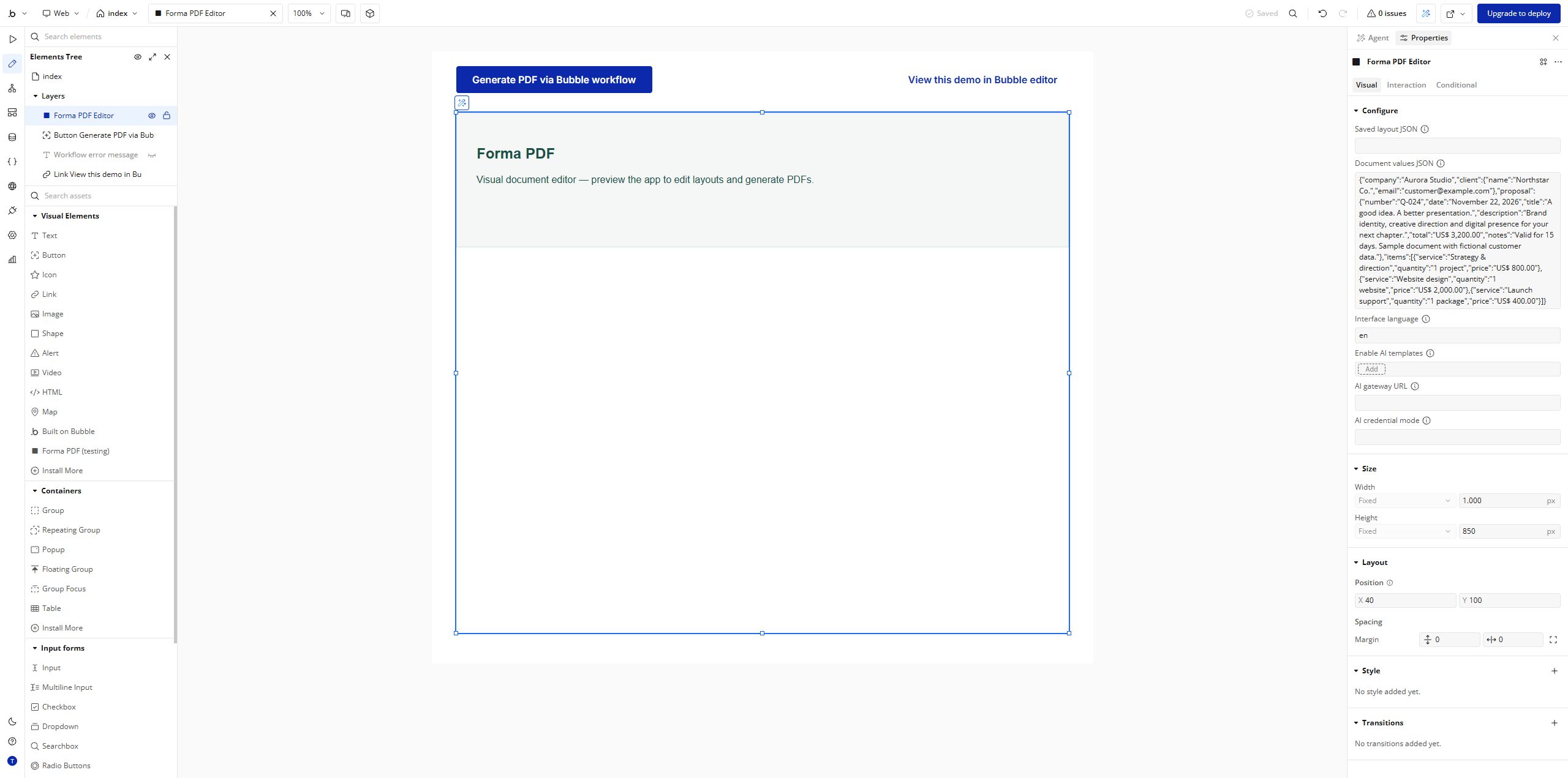
In your application's Plugins tab, find Forma PDF — Visual PDF Editor and install it through Bubble. Drag the Forma PDF element onto a web page. Allow enough width for editing and a height of about 850 pixels. No JavaScript, stylesheet installation or separate PDF server is required.
Open the demonstration or inspect its Bubble editor. It contains fictional data and a native Bubble workflow that generates a PDF.
2. Connect your data
| Element property | What to provide |
|---|---|
| Saved layout JSON | Saved layout text. Leave empty for a starter document. |
| Document values JSON | A JSON object with your application data. Leave empty for blank values. |
| Interface language | en, pt-BR or es. This changes the controls, not the document content. |
| Enable AI templates | Optional, off by default. Requires your own gateway. |
| AI gateway URL | Your configured HTTPS template-generation endpoint. |
| AI credential mode | user for personal keys entered by users; host for credentials held by your own gateway. |
Use dynamic expressions to supply JSON from your database. Preserve JSON types and escape dynamic text with Bubble's JSON-safe formatting. Never build JSON by directly concatenating unescaped user text.
3. Edit visually
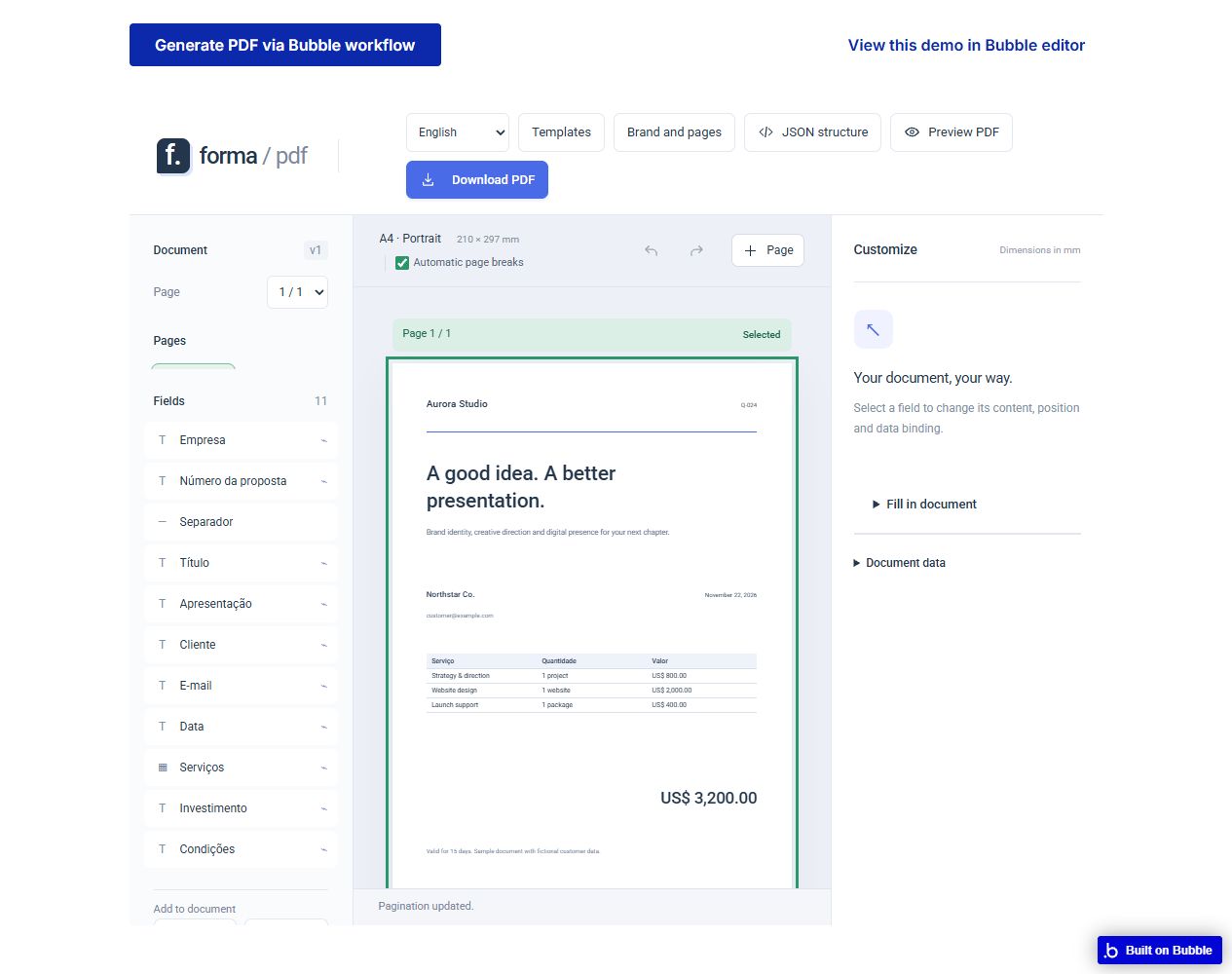
Choose Templates to start from a proposal, quotation, menu or internal document. Add text, images, tables and lines. Move fields on the page and change their content, dimensions, colors and data bindings. Use Brand and pages for repeated headings, footers and page numbers. Automatic page breaks extend long content and tables.
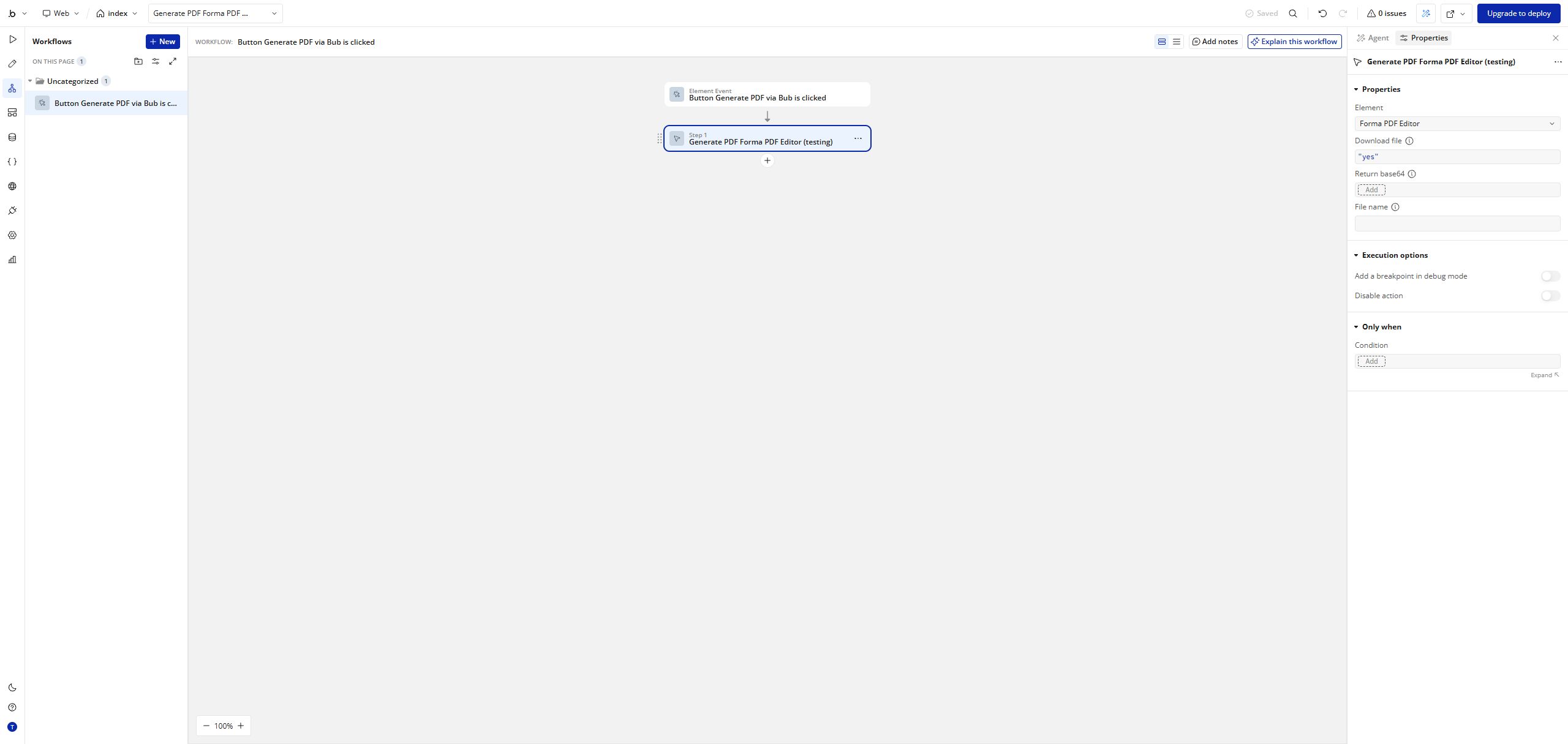
4. Generate a PDF in a workflow
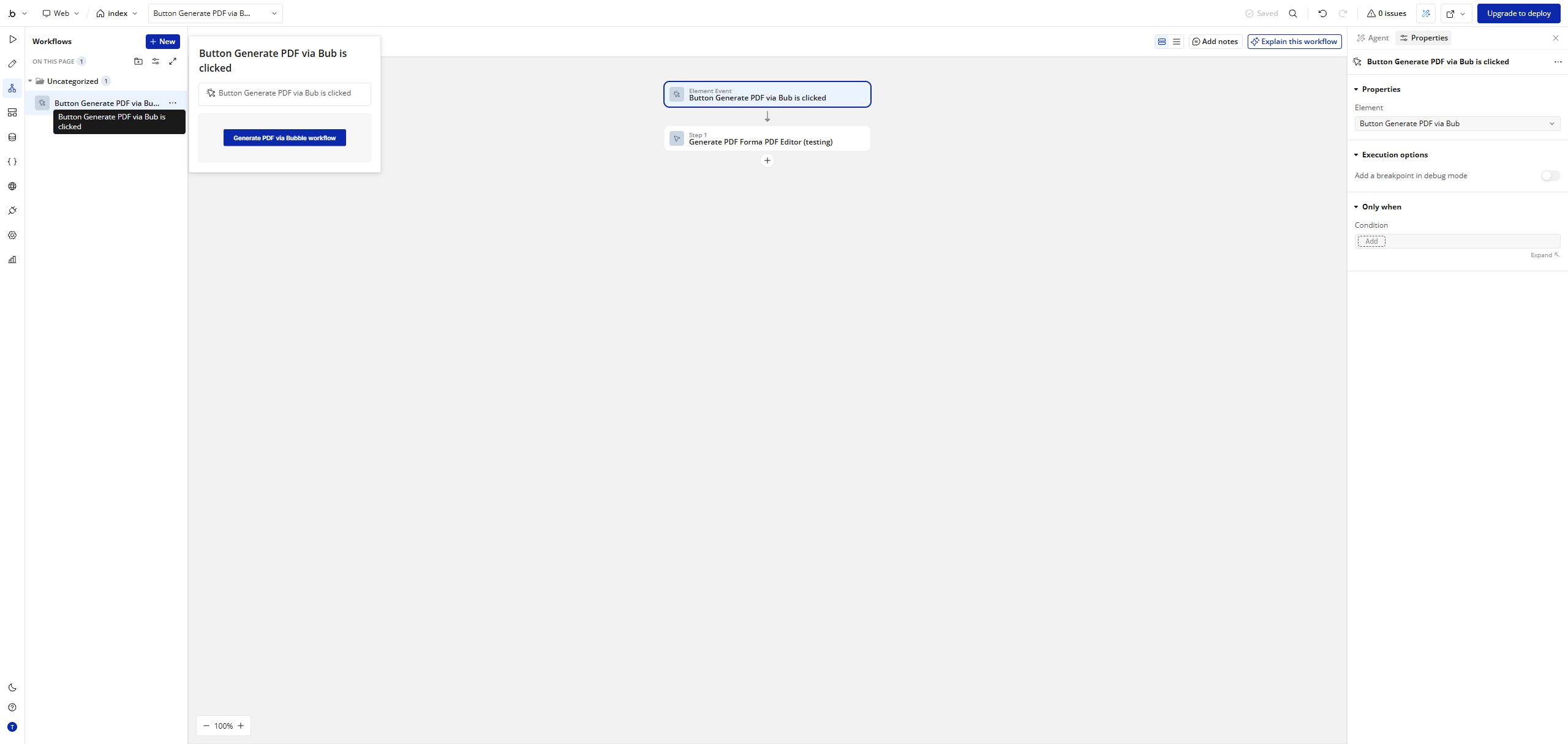
- Add a button and create its click workflow.
- Add the element action Generate PDF and select your Forma PDF element.
- Set Download file to yes for a browser download. Set Return base64 to yes only when another workflow needs the file content.
- Optionally provide a file name. Listen to the element event PDF is ready before using its PDF temporary URL or PDF base64 state.
The Generating PDF state is yes while processing. Use it to disable your button and show a loading message. Duplicate requests are ignored while a generation is active. The built-in Download PDF button also works without a workflow.
A blob: URL is temporary and only works in the browser session that created it. It is not a permanent database or email attachment URL. To upload or email a file, use PDF base64 with your application's own file-storage workflow and convert it into an actual PDF file as required by that service.
5. Save and reopen documents
Create a Bubble data type such as DocumentPDF with text fields layout_json and values_json, plus an owner User. Run Get structure, then save the element's Layout JSON and Values JSON states. To reopen, supply those saved fields to Saved layout JSON and Document values JSON.
The Document changed event lets you react to edits. Use an explicit save button or debounce autosave. Do not bind the element's output states directly back into its own inputs. Your app controls its database and user access; configure Privacy Rules so users cannot read other users' documents. This plugin does not automatically upload documents.
States and events
| State | Technical name |
|---|---|
| Layout JSON | structure_json |
| Values JSON | values_json |
| PDF temporary URL | pdf_url |
| PDF base64 | pdf_base64 |
| Generating PDF | is_generating |
| Error message | error_message |
| Data contract JSON | data_contract_json |
| Creating AI template | is_creating_template |
| AI template summary | ai_summary |
Events: Document changed (structure_changed), PDF is ready (pdf_ready), An error occurs (error) and AI template is ready (template_ready).
Optional GPT or Claude gateway
PDF editing and generation do not require AI. To create templates from descriptions, configure your own HTTPS gateway and provider account. Use the Create AI template action with provider openai or anthropic, a document description, gateway URL, language and optionally a model. Personal user API keys are passed transiently to that configured gateway, not stored in the document. Keep shared company credentials on your backend. Do not put them in public Bubble properties, page source or data visible to other users.
No hosted AI service, provider credits or gateway implementation is supplied by this Bubble plugin. Your gateway must implement the documented template-generation contract and permit authenticated requests from your Bubble domain. Do not enable AI in a public app until you have configured authentication, rate limits and provider billing limits.
Errors and limitations
Show the Error message state when An error occurs fires. Invalid JSON retains the previous valid document. A failed generation can be retried after correcting the input. Supported scope: A4 and Letter, PNG/JPEG images, multi-page documents and long tables with automatic pagination. Totals are supplied by your data. Arbitrary HTML conversion, digital signatures, permanent file hosting and automatic email delivery are not included.
Support
Email telhado.folha@gmail.com with your plugin version, browser, a description of the problem and synthetic sample data. Do not include API keys or private customer documents.